
As part of our continuing Mail Assure look and feel enhancements, we have released a new Dashboard interface. This interface incorporates an improved widget-based graphical dashboard, a new navigation style along with a platform bar at the top of each page to allow you to quickly and conveniently access your account settings, review our resources and navigate to products in our portfolio.
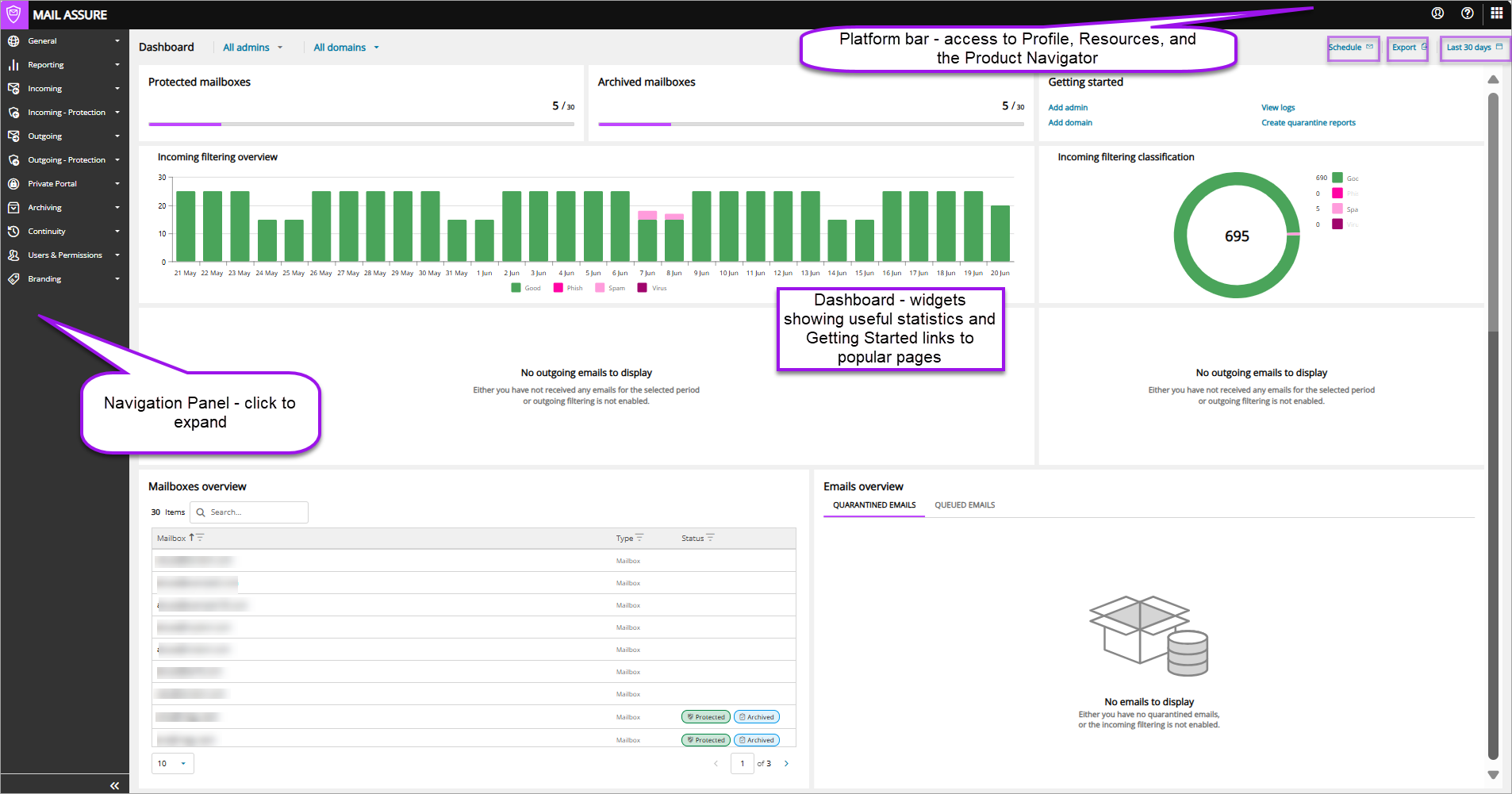
The new Dashboard is broken down into the following sections:
Prerequisites
- Admin level, N-able Login access to https://securemail.management
Information on this can be found on the Setup N-able Login
Access the new Dashboard Interface
- Go to https://securemail.management
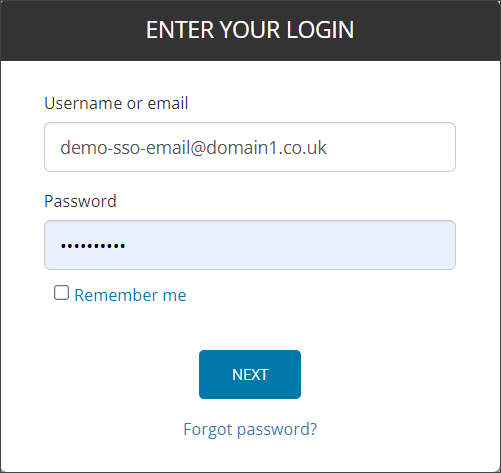
- At the login screen enter your SSO enabled Admin credentials to access the Admin Level Control panel
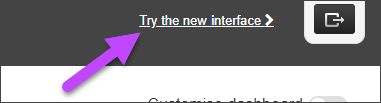
- Where you are not currently logged into the new interface, click on Try the new interface in the top right of the page
Platform Bar
The Platform Bar is made up of the Account, Help, and Applications sections.
 Account
The Account section contains the name and email address associated with your account, and settings relevant to your login.
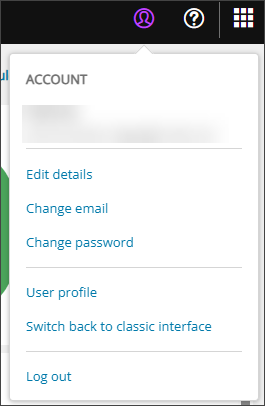
- Edit details - Amend the First and Last Name associated with your account
- Change email - Change your account's email address
- Change Password - Update your account password
- Enable 2FA (only visible if 2FA has not already been set up)- Open the 2FA Setup wizard and enable Multi Step Authentication for your account (mandatory)
- User profile - Manage your account settings. Update your password and enable the use of advanced custom filtering rules as well as choose your dashboard language. For security, setup a Notification email to alert when your account is accessed from a different IP address or location
- Switch back to classic interface - Leave the new dashboard interface and return to the classic Mail Assure version
- Log out - Exit out of Mail Assure along with any other MSP products you are currently logged into via SSO
 Help
Help
The help section provides links to useful tools.
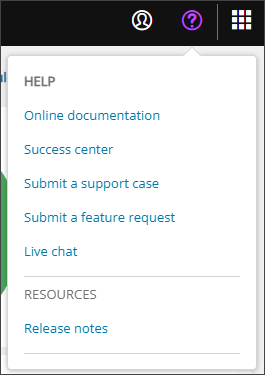
- Online Documentation - Open the Mail Assure help documentation
- Success Centre - Access N-ableMe, this is your first port of call for any questions you may have regarding the software. Use "Search our resources" to review Knowledge Base articles and documentation
- Submit a support case - Contact our support team for assistance on any issues you may be encountering
- Submit a feature request - Have an idea on how we can improve Mail Assure? Let us know by submitting to the Ideas Page
- Live chat - You can also contact our support team via our live chat feature for immediate assistance on any issues you may be encountering
- Release notes - Check here for recent updates and changes made to the system. You can subscribe to this page to receive an email any time a change is posted here
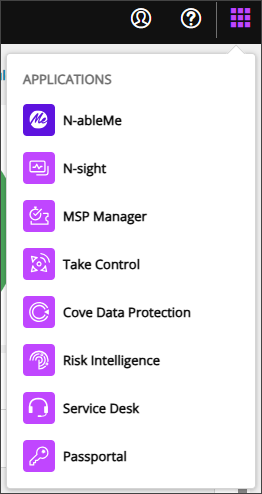
 Applications
The Applications section lists all N-able applications available to you.
Navigation Panel
The Navigation panel uses new icons and styling. Use the << and >> buttons at the bottom of the panel to expand and collapse the panel and click each heading to expand or collapse the section.
Dashboard - Top Banner
The top banner of the Dashboard above the widgets allows you to select the information source to display in the dashboard.
All Admins
By default the dashboard displays information for All Admins.
- Use this drop-down to search for and select specific admins to change the content of the dashboard widgets to data relevant only to the selected Admin or return to the All Admins view.
All Domains
By default the dashboard displays information for All Domains.
- Use the drop-down to search for and select specific domains to change the content of the dashboard widgets to data relevant only to the selected Domain or return to the All Domains view.
Schedule
Use the Schedule option to set up a plan to deliver the dashboard statistics report.
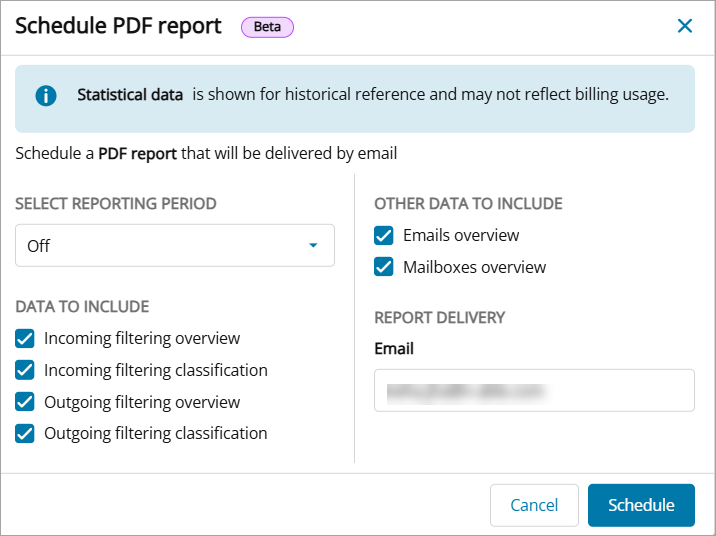
- Click Schedule on the top banner. The Schedule PDF report window displays.
- Select the Reporting Period from the dropdown
You can schedule the report either weekly or monthly. This setting triggers the report to be delivered either on Monday or on the first day of the month containing the data for the last 7 days or the last 30 days.
- Select the Data To Include from Incoming filtering overview, Incoming filtering classification, Outgoing filtering overview, and Outgoing filtering classification.
- Select Emails overview and/or Mailboxes overview from the Other Data To Include section if required.
- Enter the Email address of the recipient
By default the recipient is set to the login user's email, but can be changed here.
- Click Schedule
Export
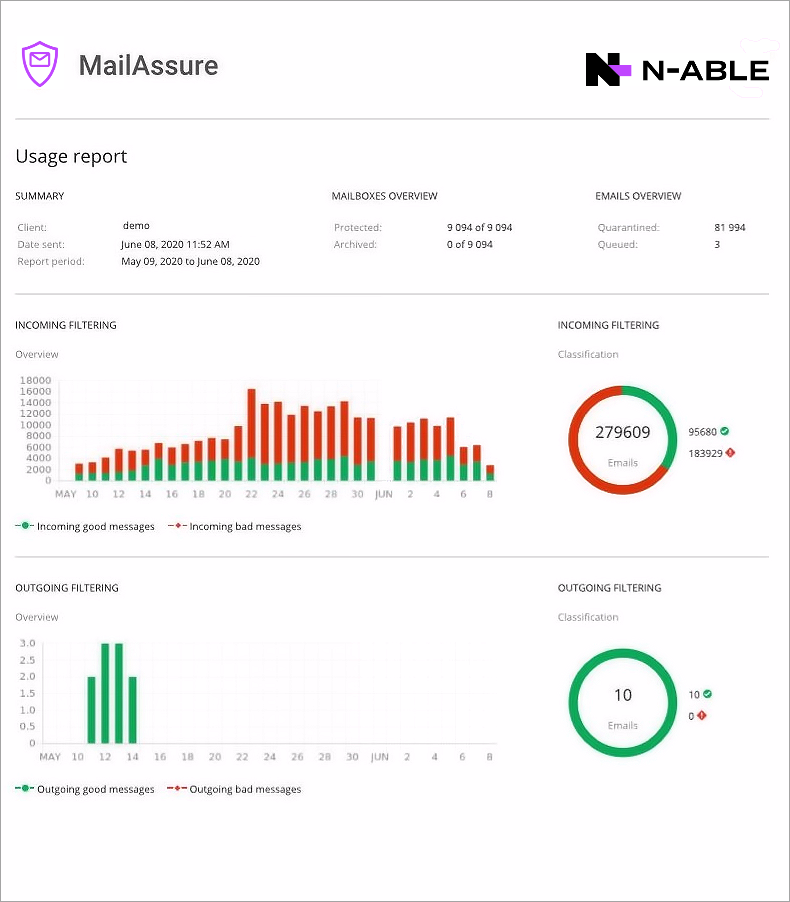
Use the Export option to create a PDF version of the overview and classification widget information.
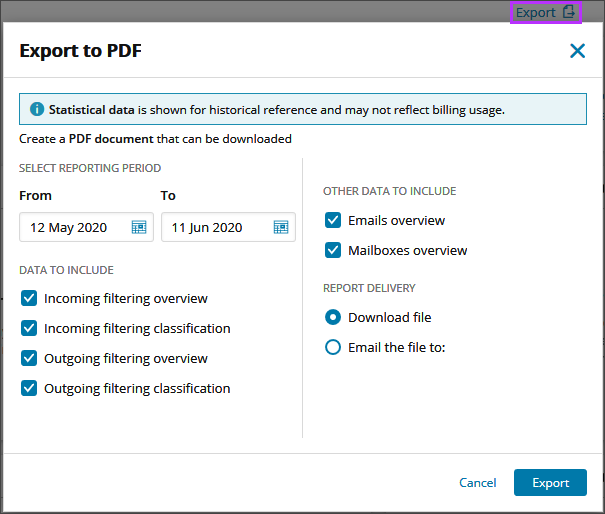
- Select the from and to dates for Select Reporting Period
- Select the Data To Include from Incoming filtering overview, Incoming filtering classification, Outgoing filtering overview, and Outgoing filtering classification.
- Select Emails overview and/or Mailboxes overview from the Other Data To Include section if required.
- Select whether you want the Report Delivery method to be Download file or Email the file to
- If an email is required, enter the email address of the recipient
- Click Export
The generated report is generated:
Date Range
By default the dashboard displays information for the last 30 days. To change this:
- Click on the calendar icon to open the Date Range selector
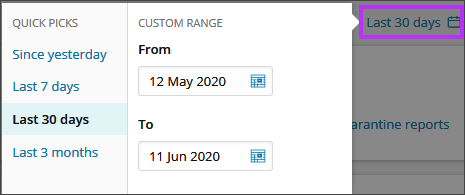
- Select the date range to view from one of the preset Quick Picks (Since yesterday, Last 7 days, Last 30 days, Last 3 months) or create your own Custom Range using the date pickers
Dashboard - Widgets
The widgets display a variety of statistics based on the dashboard top banner selection.
Protected Mailboxes
Shows the number of protected:
- Shared mailboxes
- Distribution lists
- Standard mailboxes
And the total number of protected mailboxes across all categories known to Mail Assure.
Please be aware that the number of Protected Mailboxes may take up to 24 hours to update.
Archived Mailboxes
Shows the number of archived:
- Shared mailboxes
- Distribution lists
- Standard mailboxes
And the total number of archived mailboxes across all categories known to Mail Assure.
Please be aware that the number of Archived Mailboxes may take up to 24 hours to update.
Getting Started
Provides quick links to popular pages within Mail Assure-
- Add admin
- Add domain
- View Logs
- Create quarantine reports
Incoming Filtering Overview
Displays the number of messages handled by the Incoming filter in bar chart format.
The messages are split into the following categories per day:
- Good - legitimate and valid emails the system tries to deliver immediately
- Phish - illegitimate and invalid emails the system has detected as a phishing attempt
- Spam - illegitimate and invalid emails the system has detected as spam
- Virus - illegitimate and invalid emails the system has detected as a virus
Click on each coloured section of the chart per day for a list of messages that fall into that category.
Incoming email classification
Displays the total number of messages handled by the Incoming filter in a doughnut graph.
The messages are split into the following categories:
- Good - legitimate and valid emails the system tries to deliver immediately
- Phish - illegitimate and invalid emails the system has detected as a phishing attempt
- Spam - illegitimate and invalid emails the system has detected as spam
- Virus - illegitimate and invalid emails the system has detected as a virus
Click on each coloured section of the chart for a list of messages that fall into that category.
Outgoing filtering overview
Displays the number of messages handled by the Outgoing filter in bar chart format.
The messages are split into the following categories per day:
- Good - legitimate and valid emails the system tries to deliver immediately
- Phish - illegitimate and invalid emails the system has detected as a phishing attempt
- Spam - illegitimate and invalid emails the system has detected as spam
- Virus - illegitimate and invalid emails the system has detected as a virus
Click on the coloured section of the chart per day for a list of messages that fall into that category.
Outgoing email classification
Displays the total number of messages handled by the Outgoing filter in a doughnut graph.
The messages are split into the following categories:
- Good - legitimate and valid emails the system tries to deliver immediately
- Phish - illegitimate and invalid emails the system has detected as a phishing attempt
- Spam - illegitimate and invalid emails the system has detected as spam
- Virus - illegitimate and invalid emails the system has detected as a virus
Click on each coloured section of the chart for a list of messages that fall into that category.
Mailboxes Widget
The Mailboxes Widget is split into three tabs; Mailboxes Overview, Top 5 Recipients, Top 5 Spam Recipients.
The Mailboxes Overview tab opens by default.
Mailboxes Overview
Lists all mailboxes, their type (Mailbox, Shared Mailbox, Distribution list) and their Protected or Archive statuses.
Please be aware that the Mailboxes Overview widget may take up to 24 hours to update.
Top 5 Recipients
Lists the 5 recipient mailboxes that receive the most mail in Mail Assure and a count of the number of messages received.
Top 5 Spam Recipients
Lists the 5 recipient mailboxes that receive the most spam mail in Mail Assure and a count of the number of messages received.
Emails Overview
The Emails Overview Widget is split into two tabs; Quarantined Emails, Queued Emails.
The Quarantined Emails tab opens by default.
Quarantined Emails
View a list of messages that are currently in Spam Quarantine. The message subject, sender, recipient, date, and reason for quarantine are displayed per message.
You may perform the following actions on the messages in the quarantine list:
- Remove from Quarantine
- Release from Quarantine
- View Message
Queued Emails
View a list of messages that are currently in the message queue. The message subject, sender, recipient, and date are displayed per message.
You may perform the following actions on the messages in the queue:
- Remove from Queue
- Retry Delivery
- View Message